Translate




First, go to Clackamas Water Environment Services Utility Billing
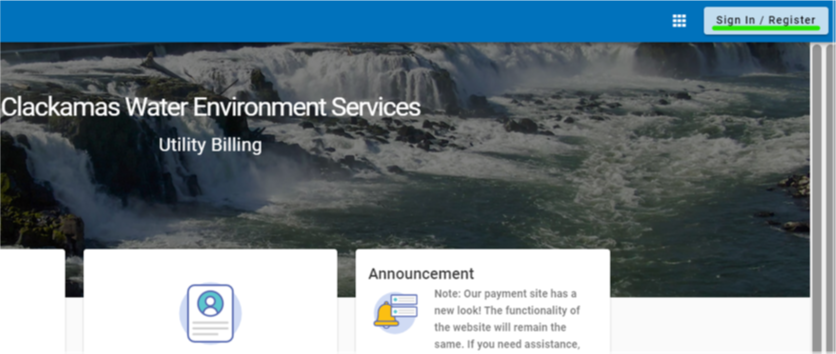
- Once on the site click the ‘Sign In/Register’ button in the upper right hand corner of the window.
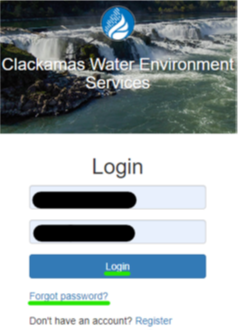
- On the login screen enter your email and password and click the ‘Login’ button. If you’ve forgotten your password instead click on the ‘Forgot Password?’ link.
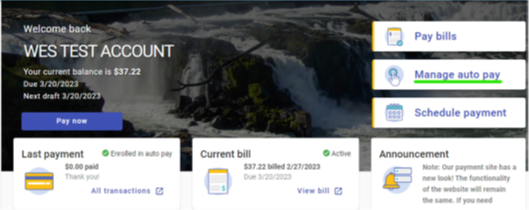
- Once you’ve logged on click on the ‘Manage auto pay’ button on the right side of the window.
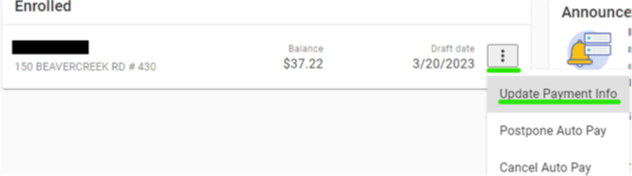
- On the manage auto pay page, click the three vertical dots next to the draft date under the ‘Enrolled’ heading and then click the ‘Update Payment Info’ button in the drop down that appears.
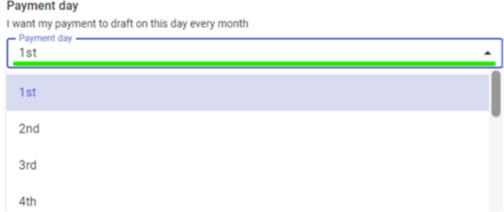
- On the ‘Update auto pay’ page click the ‘Payment day’ drop down and select a new date. The site will no longer allow you to select a day later than the 20th to ensure your account does not accrue late fees or penalties.
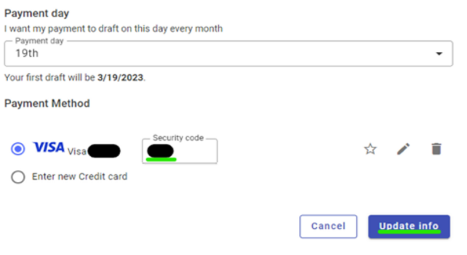
- Once a new day has been selected you will have to reenter your credit card’s security code and then click on the ‘Update info’ button.
- The draft date on the main ‘Manage auto pay’ page should now reflect the newly selected date. You will also receive an email notifying you of the change.